Modern 8 Preset
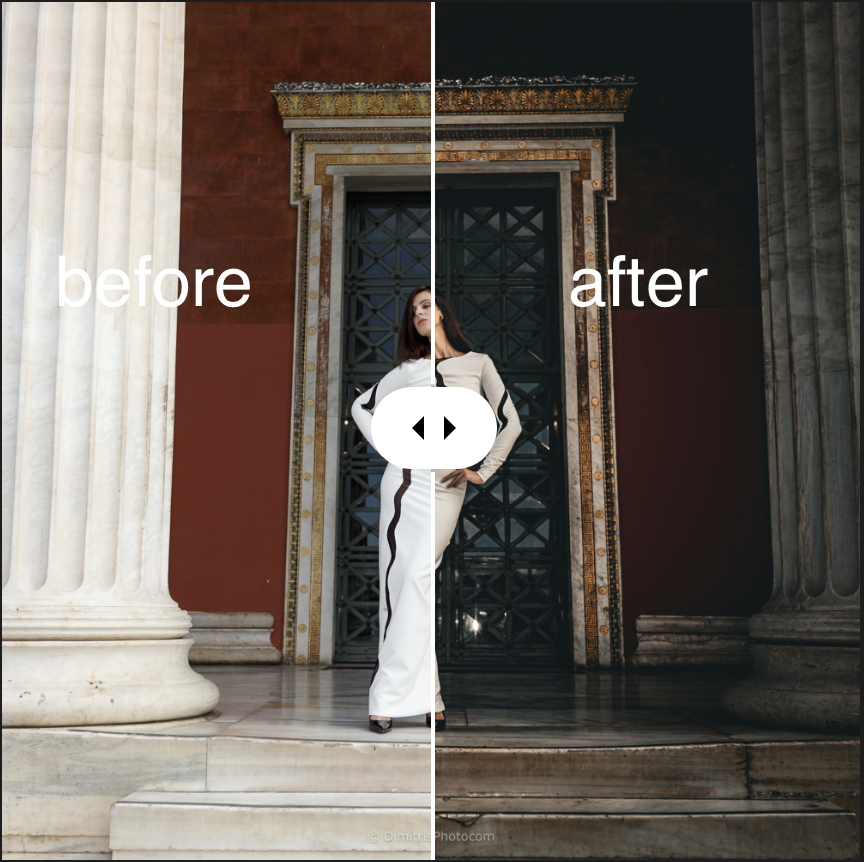
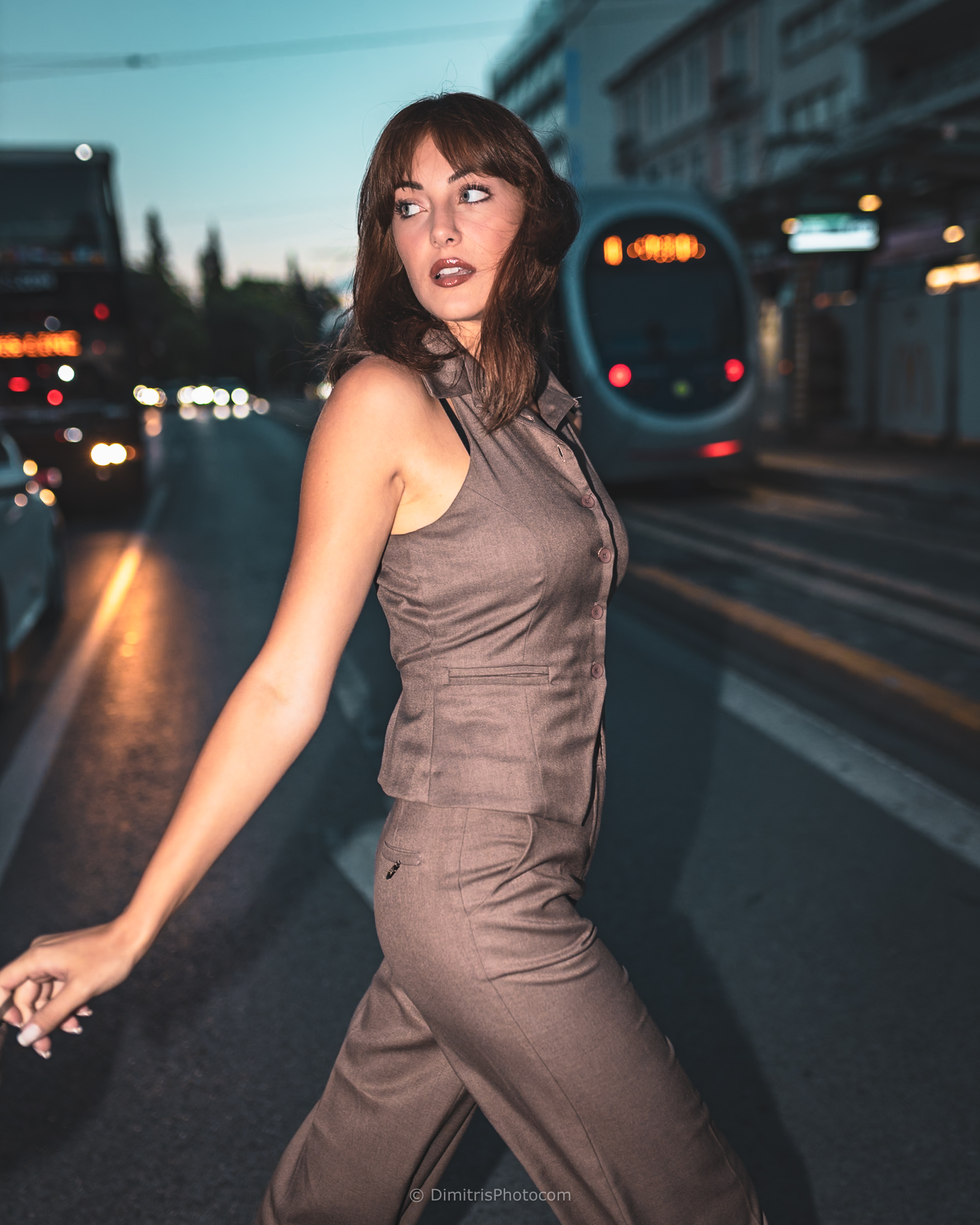
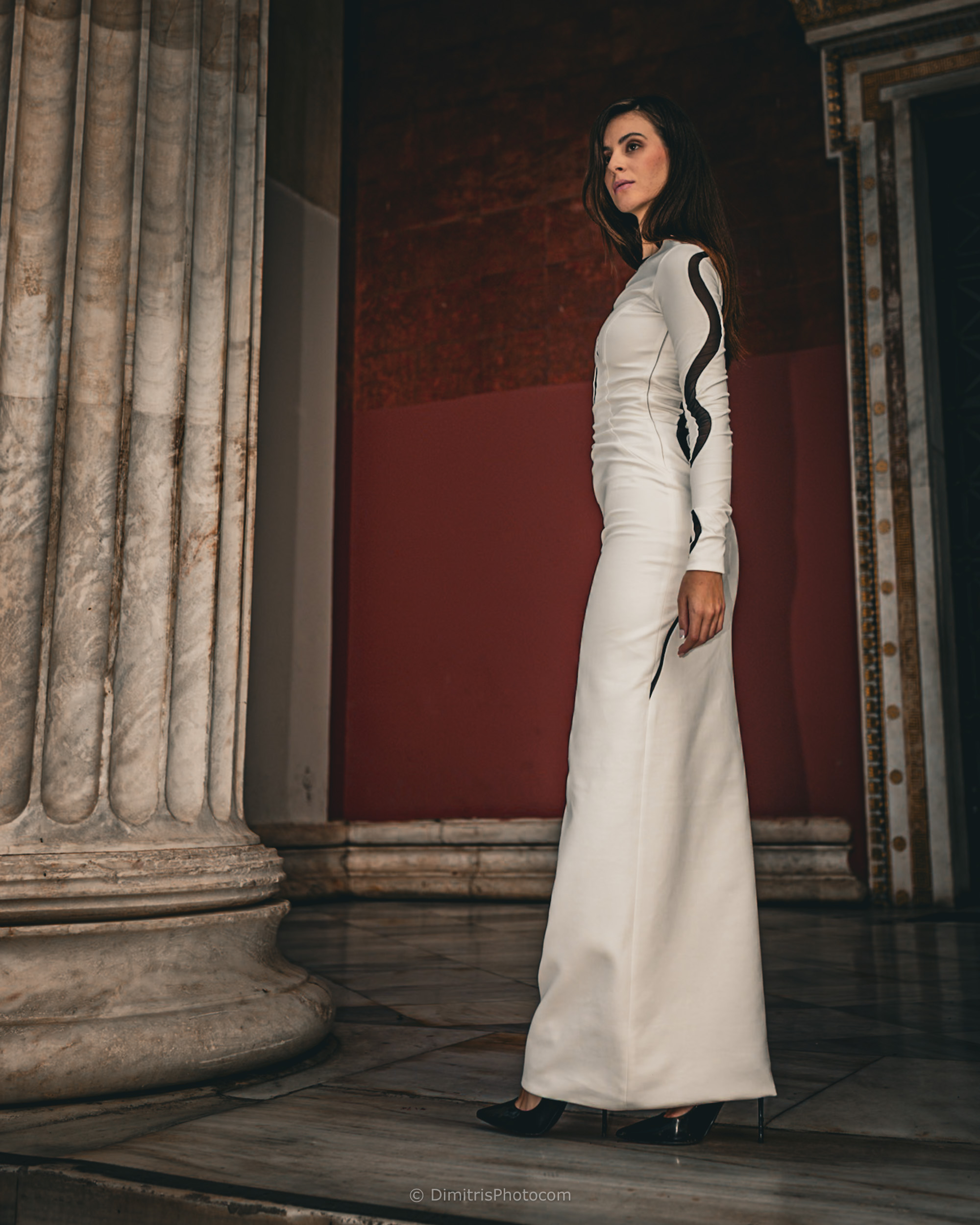
Modern 8 Preset! Ένα μοναδικό preset, που διαθέτει ισχυρή αντίθεση, έντονους χρωματικούς τόνους, χωρίς να αλλοιώνεται η απόχρωση του δέρματος.
follow me on insta: https://www.instagram.com/ditocreativephoto

3,99 €
Modern 8 Preset! Ένα μοναδικό preset, που διαθέτει ισχυρή αντίθεση, έντονους χρωματικούς τόνους, χωρίς να αλλοιώνεται η απόχρωση του δέρματος.
Ιδανικό για street photography, landscape photos, lifestyle photos & fashion photoshooting
Συμβατότητα: Lightroom Classic & Photoshop
Modern 8 Preset! Ένα μοναδικό preset, που διαθέτει ισχυρή αντίθεση, έντονους χρωματικούς τόνους, χωρίς να αλλοιώνεται η απόχρωση του δέρματος.

ST-Vintage Fashion Preset! Ένα Lightroom preset, που χρησιμοποιείται συνήθως σε στουντιακές φωτογραφίσεις και δίνει ένα στυλ vintage και film με λίγο κόκκο θορύβου, δημιουργώντας μία νοσταλγική νότα στις λήψεις σας. Επίσης δεν αλλοιώνει το χρώμα του δέρματος και εξαλείφει τις αντιθέσεις.
Συμβατότητα: Lightroom Classic & Photoshop